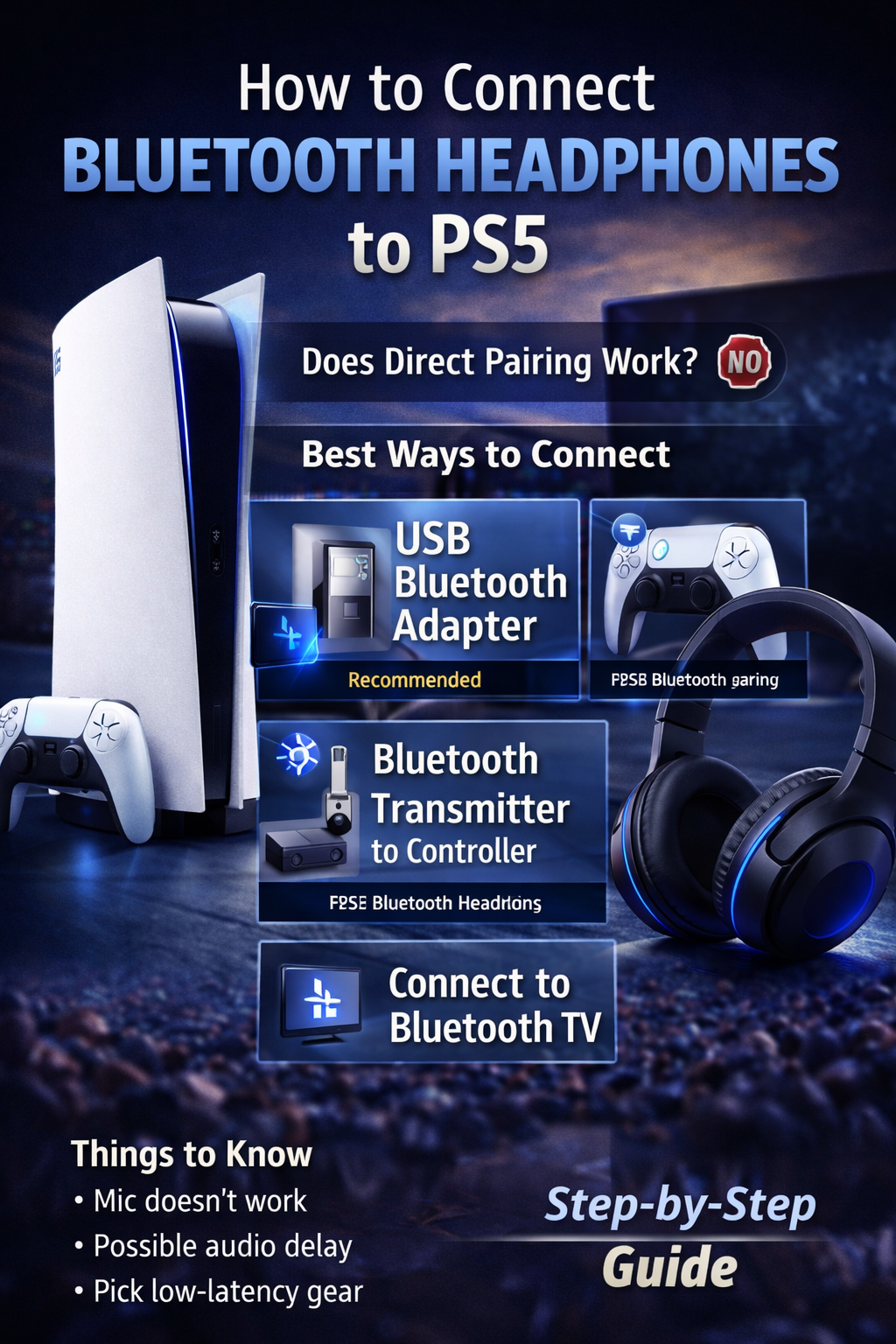
Lots of people who own a PS5 look for ways to connect their Bluetooth headphones to the PS5. Then they get really confused when their Bluetooth headphones will not connect to the PS5. This happens because the PS5 handles audio differently than phones and laptops. If you try to connect standard Bluetooth headphones directly, they usually will not work.
This guide explains why Bluetooth headphones don’t connect to PS5, what options are available, and how people actually use Bluetooth headphones with PS5.
Can You Connect Bluetooth Headphones Directly to PS5?
So you want to know if Bluetooth headphones can connect directly to the PS5. The short answer is no — not in the usual way.
The PS5 has limited Bluetooth compatibility. Some Bluetooth headphones may work only with adapters, not through direct pairing. Sony uses its own low-latency wireless audio system, which is different from standard Bluetooth.
Does PS5 Support Bluetooth Audio for Headphones?
No. The PlayStation 5 does not support standard Bluetooth audio for headphones.
You can put your headphones in pairing mode, but the PS5 will not detect them. This is normal behavior and not a fault with your headphones.
Why PS5 Blocks Standard Bluetooth Audio
Sony designed the PS5 this way to avoid audio latency. Bluetooth audio can cause delay, which is bad for gaming—especially competitive games.
Because of this:
-
Regular Bluetooth headphones are blocked
-
Only USB or wireless audio devices are allowed
-
PS5 prioritizes fast audio response over convenience
This design improves gameplay performance but limits Bluetooth support.
Ways to Use Bluetooth Headphones With PS5
Even though direct pairing is not possible, there are workarounds that actually work.
Method 1: Use a USB Bluetooth Adapter (Best Option)
This is the most reliable and popular solution.
How to Set It Up
-
Plug a USB Bluetooth adapter into the PS5
-
Put your Bluetooth headphones into pairing mode
-
The adapter connects automatically
-
Go to PS5 audio settings and confirm output device
Benefits
-
Easy setup
-
Better sound stability
-
Works with most Bluetooth headphones
Method 2: Bluetooth Transmitter via PS5 Controller
Some Bluetooth transmitters plug into the controller’s headphone jack.
How It Works
-
Insert the transmitter into the controller
-
Enable pairing mode on both devices
-
Audio plays through the controller to your headphones
Things to Keep in Mind
-
Shorter wireless range
-
Controller battery drains faster
Method 3: Connect Bluetooth Headphones to Your TV
If your TV supports Bluetooth audio, this is another option.
Steps
-
Open your TV’s Bluetooth settings
-
Pair your headphones
-
Set PS5 audio output to TV
Downsides
-
Audio delay (latency) may occur
-
Microphone usually does not work
Do Bluetooth Headphone Microphones Work on PS5?
Generally, no.
When using adapters or TV Bluetooth:
-
Audio goes to your headphones only
-
Microphone audio is not sent back to PS5
If Voice Chat Is Important
-
Use a wired headset
-
Or use a USB wireless gaming headset
Best PS5 Audio Settings After Connecting Headphones
After connecting:
-
Go to PS5 sound settings
-
Confirm correct output device
-
Set audio to Stereo
-
Turn off controller speaker if needed
These small changes significantly improve sound clarity.
Common PS5 Bluetooth Audio Problems and Fixes
No Sound
-
Check audio output settings
-
Reconnect the adapter
Audio Lag
-
Use a low-latency Bluetooth adapter
-
Avoid TV Bluetooth if possible
Mic Not Working
-
Bluetooth mic support is very limited
-
Use a gaming headset instead
Is Using Bluetooth Headphones on PS5 a Good Idea?
Good For
-
Casual gaming
-
Watching movies
-
Single-player games
Not Ideal For
-
Competitive gaming
-
Voice chat-heavy sessions
Final Verdict
Knowing how to connect Bluetooth headphones to PS5 helps avoid frustration. While direct Bluetooth pairing is not supported, USB adapters and transmitters make wireless audio possible. If low latency and microphone support matter, a wired or USB gaming headset is still the best choice.