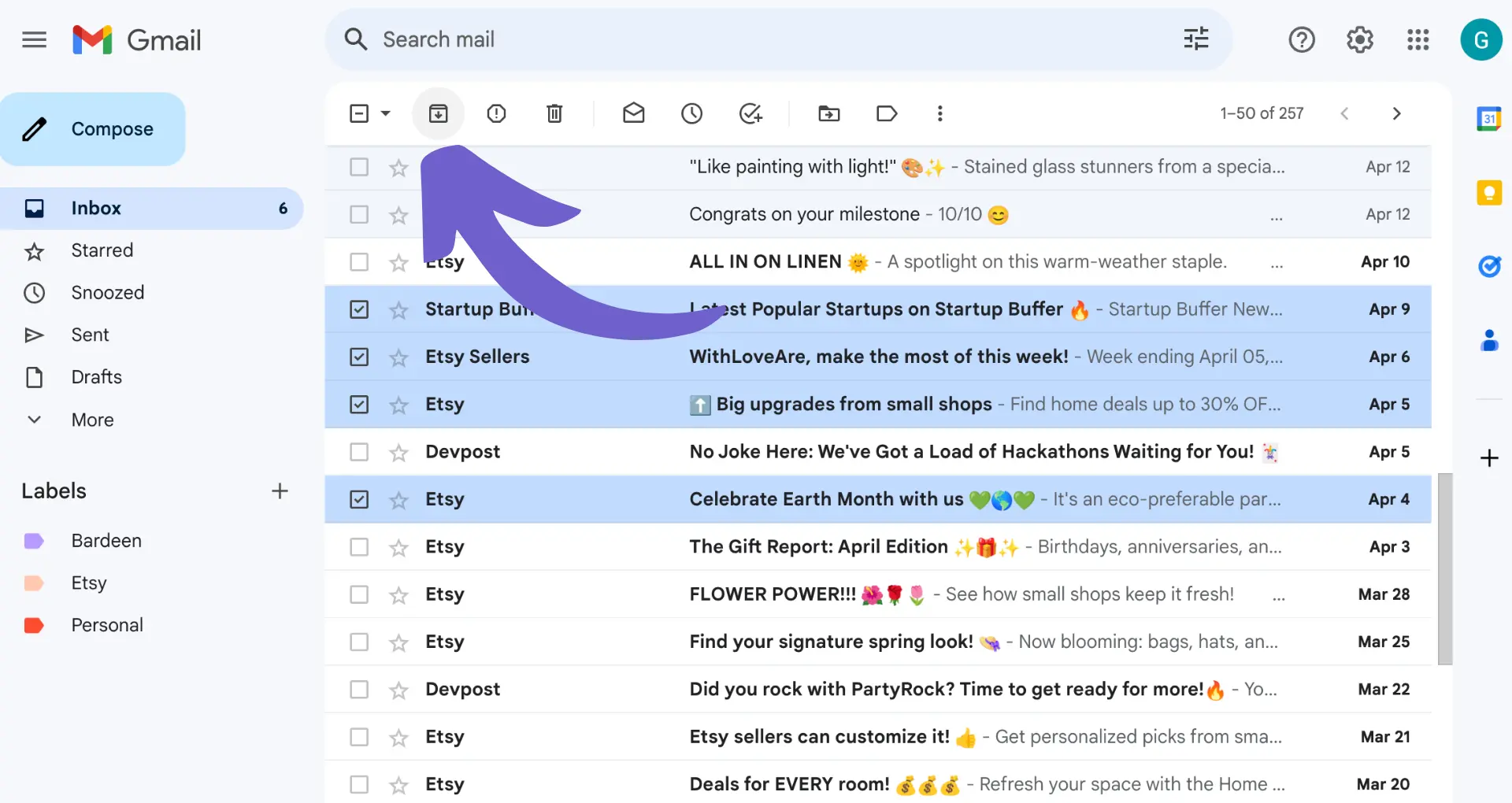
If you use Gmail long enough, this happens eventually.
You clean your inbox. You archive a bunch of emails. Everything feels organized. Then, days or weeks later, you suddenly need one of those emails. You search your inbox. Nothing. You scroll. Still nothing. For a moment, it feels like Gmail just swallowed it.
It didn’t.
Archived emails in Gmail aren’t gone. They’re just not where you expect them to be.
What Archiving Really Means in Gmail
Archiving is Gmail’s way of saying, “You don’t need this right now, but you might later.”
When you archive an email, Gmail removes it from your inbox view. That’s all. The email is still there. It hasn’t been deleted. It hasn’t been hidden forever. It’s just been moved out of sight.
That’s why people get confused. Gmail doesn’t clearly tell you where archived emails go. It just removes them from the place you look at most.
Where Archived Emails Actually End Up
Archived emails go to All Mail.
That name throws people off. “All Mail” sounds like a backup folder or something technical. It’s not. It’s simply a list of almost every email in your account.
Inbox emails are there.
Sent emails are there.
Archived emails are there too.
The only difference is labels. Emails in your inbox have an “Inbox” label. Archived ones don’t. That’s it.
Finding Archived Emails on a Computer (The Easiest Way)


Open Gmail on your computer and look at the left side. If you don’t see All Mail, click “More.” Once you open it, don’t panic when you see a long list.
Scroll slowly.
Look for emails that don’t say “Inbox” next to them. Those are archived messages. Most people find what they’re looking for within seconds once they know this.
When Scrolling Feels Useless, Use Search Instead
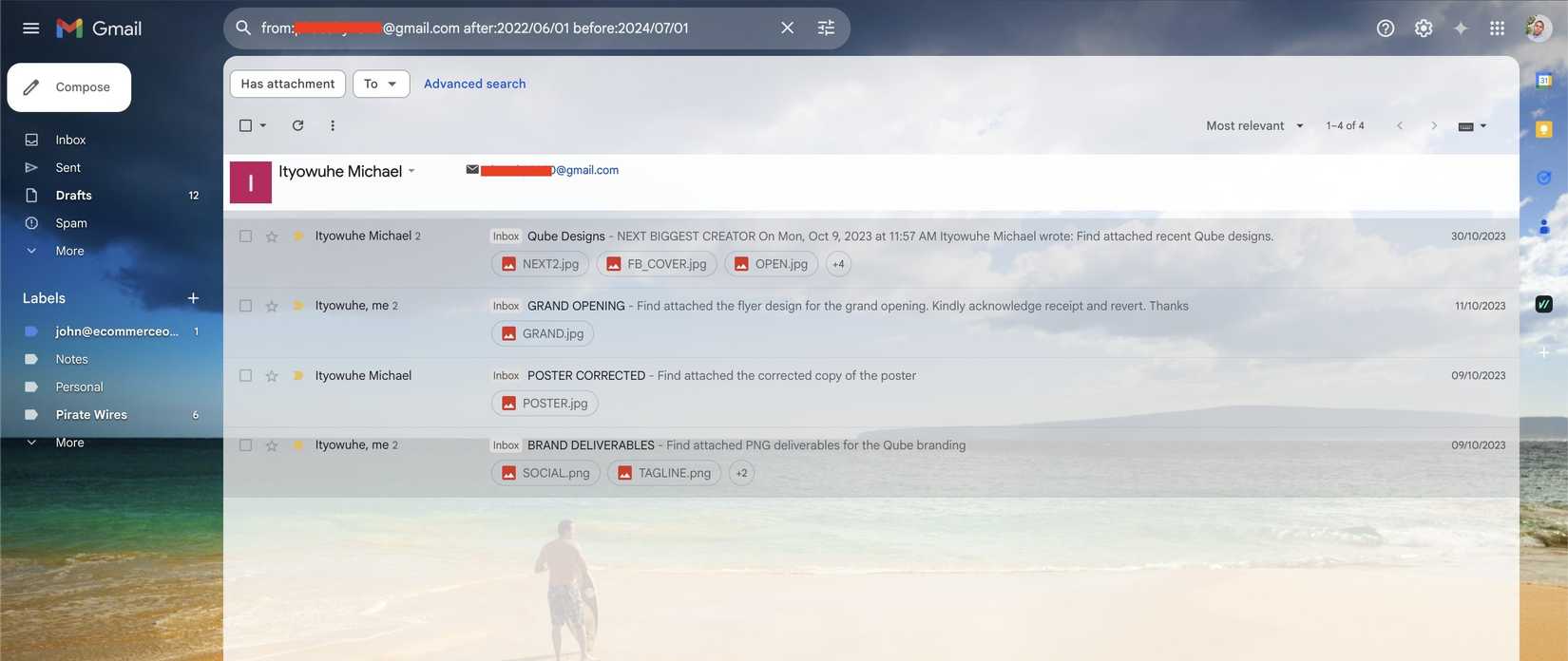

If your Gmail account is old, scrolling through All Mail can feel pointless. That’s when search helps.
Type anything you remember about the email into the search bar. A name. A word. Even part of the subject line.
If you want Gmail to ignore the inbox completely, type:
This tells Gmail, “Show me emails that aren’t in my inbox.” In most cases, that means archived emails.
Finding Archived Emails on the Gmail App

On your phone, Gmail hides things even more.
Open the app and tap the three lines in the corner. Scroll. Keep scrolling. You’ll see All Mail. Tap it.
Just like on desktop, archived emails are the ones without the Inbox label. Nothing fancy. Nothing hidden behind settings.
Getting an Archived Email Back Into the Inbox
Once you find the email, moving it back is simple.
Open it.
On desktop, click Move to Inbox.
On mobile, tap the three dots and choose Move to Inbox.
The email will show up like it never left.
When the Email Still Isn’t There
This is where people assume Gmail failed them. Usually, something else happened.
Before giving up, check:
-
Trash
-
Spam
-
Any labels you’ve created
Sometimes filters move emails automatically. Sometimes people delete instead of archive without realizing it. Gmail is quiet when it does these things, which adds to the confusion.
Archive vs Delete (Why This Matters)
This is the mistake almost everyone makes at least once.
Archived emails stay forever unless you delete them manually.
Deleted emails go to Trash and are erased after 30 days.
If you want to keep something “just in case,” archive it. If you’re sure you don’t need it again, delete it.
Final Thoughts
Knowing how to find archived emails in Gmail changes how frustrating Gmail feels. Archived emails aren’t missing. They’re just out of sight.